Connect AI assistants
On paid plans you can connect Claude, ChatGPT, Cursor or any other MCP client to the app. Once connected, you can ask the assistant to review feed settings, preview products, adjust attributes or run a feed, all from chat.
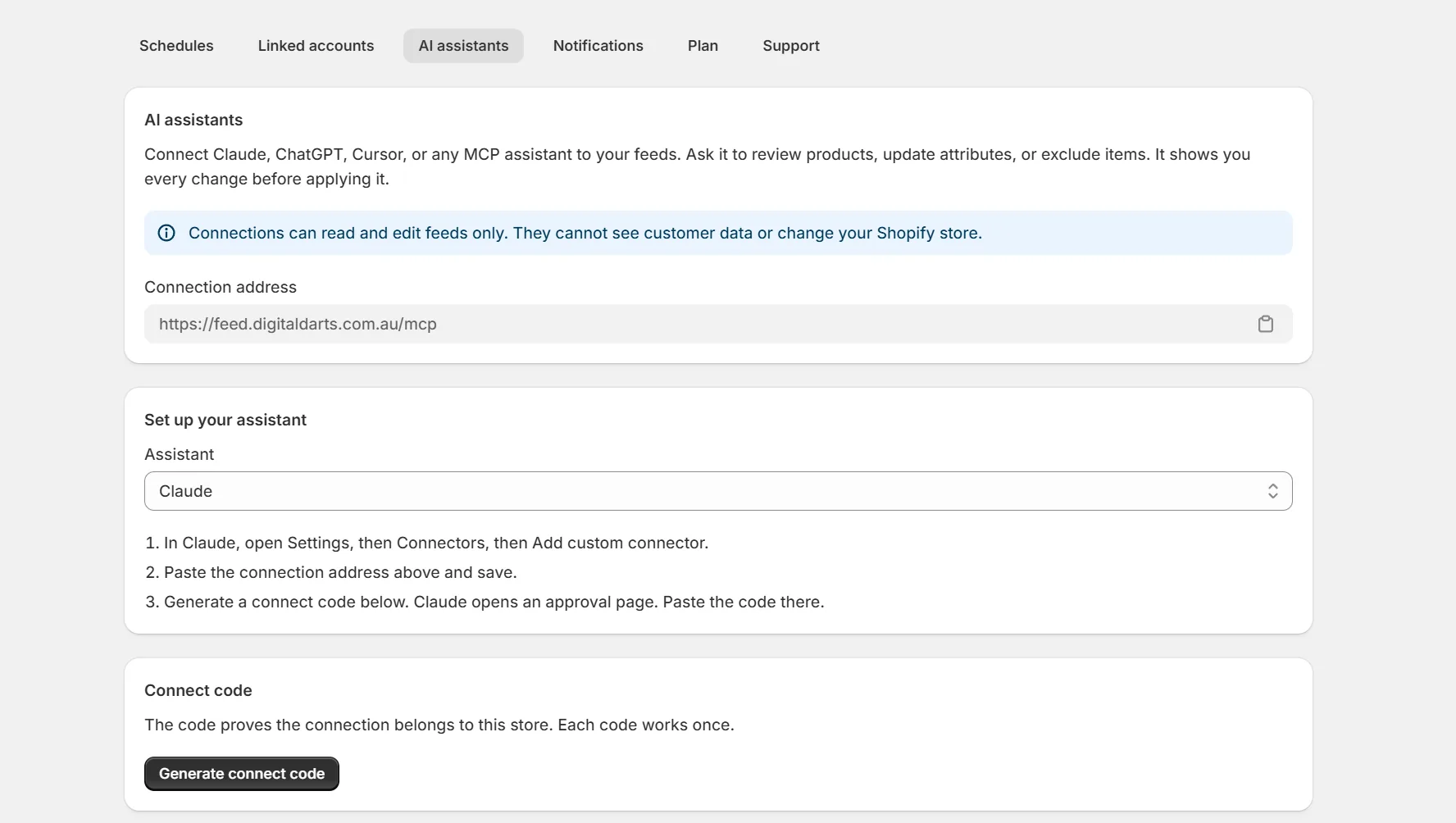
Every assistant approves its connection with a connect code from the app's AI assistants settings page. The code proves the connection belongs to your store. Each code works once and expires after 10 minutes. Claude finds the app in its directory. Other assistants also need the connection address shown on the same page.
If several people connect assistants to one store, give each connection a name like Sam's Claude. Type it in Connection name before you press Generate connect code. The name shows under Active connections, and Rename on its row changes it later.
Claude
Connect from the Claude directory
Open the FeedShine listing in the Claude directory and click Connect. You can also find it in Claude under Settings, then Connectors.
Approve with your code
Claude opens an approval page. In the app, press Generate connect code and paste the code there. The connection appears in your settings list.
Claude Code
Run this command in your terminal.
claude mcp add --transport http feedshine https://feedshine.app/mcpStart a chat and approve the connection when prompted. Paste a connect code on the approval page that opens.
ChatGPT
Open the connector settings
In ChatGPT, open Settings, then Connectors. Turn on developer mode under Advanced if custom connectors are hidden.
Add the connector
Add a new connector with the connection address from the app.
Approve with your code
Generate a connect code in the app and paste it on the approval page.
Cursor
Add this to your mcp.json file, then restart Cursor and approve the connection with a connect code.
{
  "mcpServers": {
    "feedshine": {
      "url": "https://feedshine.app/mcp"
    }
  }
}Other MCP clients
The app is a standard remote MCP server. Any client that supports remote servers with OAuth can connect. Add the connection address, let the client register itself, and approve with a connect code.
Troubleshooting
- Code expired or already used. Codes work once and last 10 minutes. Generate a new one and try again.
- Connected to the wrong store. Revoke the connection in that store's settings, then connect again with a code from the right store.
- The assistant says AI assistant access isn't available. Your current plan no longer includes AI connections. Upgrade to reconnect.
- The connector shows no tools. Remove it in your assistant and add it again with a fresh code.
- The assistant reports a rate limit. Wait a minute and continue.
Safety
- Edits made by an assistant follow a preview then confirm flow.
- Plan rules apply to assistants exactly as they do in the app.
- Revoke any connection at any time from the settings page. A named connection shows whose it is, so you revoke the right one. Uninstalling the app revokes all connections.
Keep reading
Was this page helpful?