Connect your Google account
On this page
Connecting a Google account is optional but unlocks the deepest Google integration. The app can register feeds in Merchant Center, push products through the API and read item statuses.
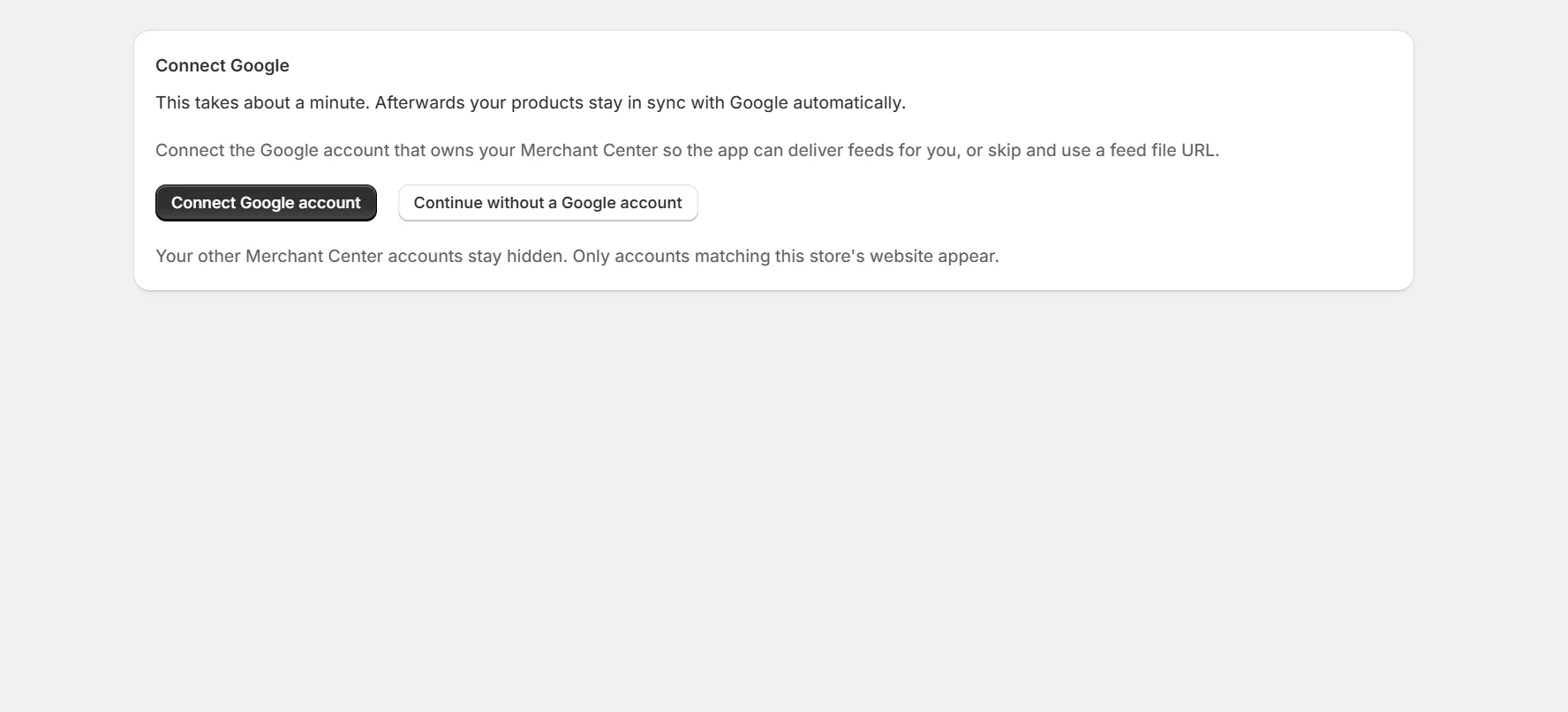
Open Settings, then Linked accounts
Select Connect Merchant Center and approve the Google consent screen. The app asks only for Merchant Center and site verification access.
Pick your merchant account
The app finds Merchant Center accounts whose website matches your store domain. Pick the one to use.
Link a feed
Open a feed and link it to the merchant account. You can then register the feed or push products directly.
Which accounts appear in the picker
Only accounts whose registered website matches your store domain or one of your market domains appear. Other accounts do not sync for privacy. This protects agencies and stores that share a Google login.
If your account does not appear, use Add account by ID and enter your Merchant Center ID. Accounts added this way stay in your list.
Note. Advanced accounts that manage sub accounts cannot hold products directly. Pick the sub account for your store instead.
Keep reading
Was this page helpful?